Time to Upgrade Your VMWare!

First off, let’s get the important dates out of the way and I’ll explain the rest below…

ESXi 6.5 & 6.7 are in Technical Guidance as of 10/15/2022, End of Technical Guidance as of 11/15/2023 (5 months away as of this writing)
vSAN 6.5 & 6.7 are in Technical Guidance as of 10/15/2023, End of Technical Guidance as of 11/15/2023
Horizon 7.13.x is in Technical Guidance as of 4/30/2023, End of Technical Guidance as of 4/20/2025 (10 months away)

Now, what does that all _really_ mean Scotty??
As time goes along, all software eventually faces a Sunset and support for the product will be spun down. After being extended during COVID, two very popular versions of VMware’s ESXi Hypervisor has gone End of General Support (EOGS), specifically ESXi 6.5 & 6.7 (and vSAN with those 2 versions). Along with these two VMware Hypervisors, their long standing VDI product, Horizon 7.13.x, is also being sent off into the sunset… But what does that mean to me and my organization??

Well, the process, timeline and support phases are defined by each software developer. For VMware the timelines are published in their “Product Lifecycle Matrix” located here and their defined phase policies are located here. There are 4 defined dates to each of the phases of a VMware Software product’s life: General Support, End of General Support, End of Technical Guidance and End of Availability.

Let’s start with General Support/General Availability (GS/GA). If it’s a big product, then this date is usually aligned with one of the major Computer Trade Shows like VMware Explore (formerly VMWorld) or at Dell Technolgies World events with all the glitz and glory and promises of releasing the best product on the planet (I won’t go in to discussions of that…), but suffice to say that the GA date is when the product is first released to the public for sale and use and . Sales folk are usually really pumped around that time, but from a support perspective, “customers who have purchased VMware support get maintenance update and upgrades, bug and security fixes and technical assistance as per the Support and Subscription terms and Conditions.” Meaning, if you have a Sev1/Hard down situation and have a support contract, they are on it and will help identify and resolve the problem. Same for Sev2 & 3 issues, but with a little less urgency.

The next important date hits around 2-4 years after the GA release date, depending on the support policies for the developer. For VMware, that date is termed: End of General Support (EOGS). When a product hits this date on the calendar – it moves from GA to Technical Guidance (TG)phase. What to expect from VMware support during this phase is as follows:

“Technical Guidance, if available, is provided from the end of the GS phase and lasts for a fixed duration. Support Services available are reduced where products are in the Technical Guidance Phase. Customers are encouraged to use the Self-Help portal as priority. If required, customers can open a support request online via their Customer Connect portal to receive support and workarounds for low-severity issues on supported configurations only.
During the Technical Guidance phase, VMware does not offer new hardware support, server/client/guest OS updates, new security patches or bug fixes unless otherwise noted. This phase is intended for usage by customers operating in stable environments with systems that are operating under reasonably stable loads.”
ref: https://www.vmware.com/support/lifecycle-policies.html

What this really means is:

  • No real Sev1 priority with VMware for products in TG. Your first recommended remediation is to update your software to a supported version.
  • Support is contained within your region. Essentially, the product is down to 8×5 support within the region where you are located, with weekday support only.
  • No new fixes/patches will be generated if a code problem is found.

For an organization who’s business depends on software to run and execute the business, this is a very precarious position to be in. The whole idea of purchasing an Enterprise grade Hypervisor/VDI/Storage product is to have the safety net of having vendor support to help if something goes wrong in the environment. Being in Technical Support myself, I’ve had to relay this message to more than a few customers during my career and it’s never a happy moment.

After a set period of time the software (and the support for it) rides off towards the horizon (see what I did there?) and is placed in End of Availability/End of Distribution (EOA/EOD) status. If you are still running the software in production at this date and you haven’t downloaded a copy of all the installation softwares to rebuild your environment, you are in big trouble, as the product will be removed from VMware’s download site and all support for the product will be discontinued. Knowledgebase articles will still be hosted by VMware, but may disappear as time goes on.

Bottom line here: Keep up with your software lifecycles and upgrade to stay ahead of TG dates. Look up the EOGS dates for the software you run in your environment and write them down on your whiteboard. The last thing you need is for a software bug/misconfiguration to be a “resume generating event” because an Administrator was playing the card “if it aint’ broke, don’t fix it”. As I’ve always said during my IT career: It takes hard work to be lazy.

How to Skip Learning vi Editor

I got to learn basic vi/vim editor the hard way many years ago reviewing Cisco PIX firewall logs and setting up jailed FTP sites on SuSE linux, so I’m in the cool club. But there are tasks that I sometimes need to do on larger files that become a bit of a pain to look up “how to do xxxx in vi” for 2 seconds of IT Glory – and then promptly forget how to do it till you have to look it up again…

Enter the cheatcode: WinSCP.

WinSCP is pretty well known for being able to do secure file copy using SSH/FTPS between Windows and Linux/SSH capable computer systems. What some may not know is that it can invoke Windows Notepad or use it’s own Internal Editor to edit files on the remote system. So, instead of using an SSH client, like puTTY, and clumsily fumble around with vi/vim to enable edit mode, make sure your emulation is correct, make changes without hitting the backspace key and remember the keystrokes to write/save/quit (seen below), you can use a much more friendly GUI text editor to get your work done!

Here’s what vi looks like via puTTY session. Not very descriptive, unless you have a vi User’s Guide handy and have some time on your hands to get all the commands right.

Leveraging WinSCP for text file viewing/editing is pretty simple, let’s walk through this.

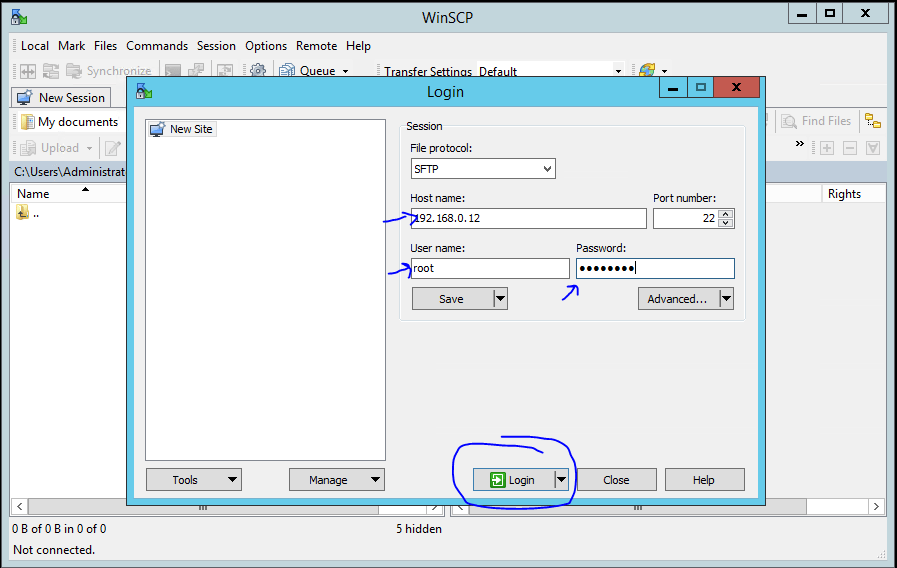
1. First thing (after installing WinSCP) is connecting to a system that has SSH already enabled. Start up WinSCP and it’ll prompt you for what system you want to connect to. Just type in the IP address or FQDN of the system, User Name and Password, then “Login”, very similar to puTTY.

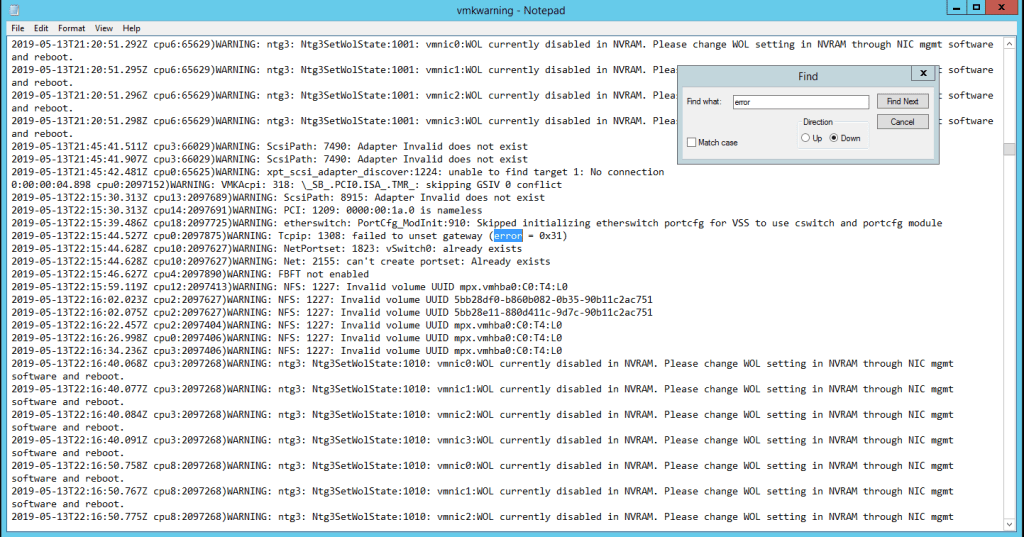
2. Your local file system will be displayed on the left side of the window, but our item of interest is on the right side of the window – the remote file system. With the Commander-type interface, you can navigate very easily without a lot of ‘cd’, ‘ls’ and ‘cd ..’ commands in puTTY to get around the file system. The target system I connected to is a VMWare ESXi host and I want to check out ‘\var\log\vmkwarning.log’ file to look for errors.

Just like in Windows, you double-click on the folders to navigate down the folder structure. Once we’re at \var\log folder, scroll down to find ‘vmkwarning.log’ and right-click on it. There several file operations you can do on the file including download to your system, duplicate the file on the remote file system (like a backup copy) and you can Edit the file using Notepad or the Internal Editor that comes with WinSCP. For our example, we’ll use good ol’ Notepad to do our log review.

Once opened, it works just like a windows hosted text document and in a quite familiar and useable GUI interface where you can scroll around, use your mouse and do searches for key words. Let’s look for the phrase ‘error’ to see what we find.

Aside from doing finds, you have the whole toolbelt of Notepad features to use on files: search/replace, cut/copy/paste, etc.

How to Make & Save changes

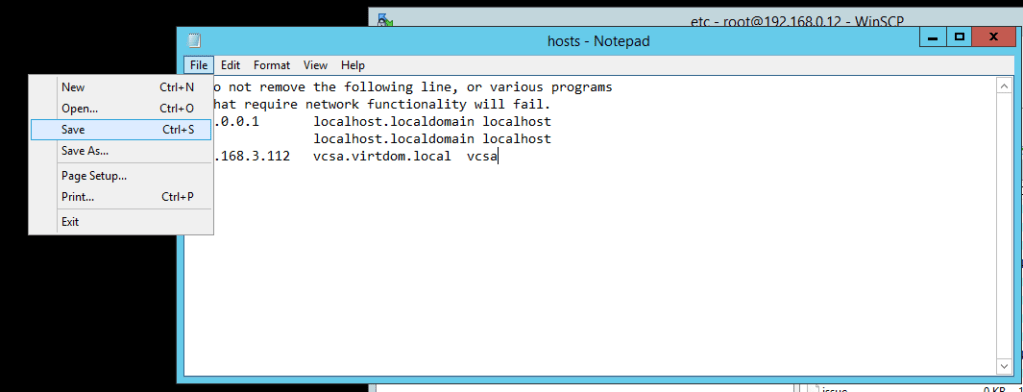
Along with doing log review, we can also make edits to files and save them back to the remote system. For instance, we need to make an edit to the hosts file on a system to hard-set an IP to FQDN mapping (in case DNS has failed or isn’t reliably reachable). Just change or add the information needed in the file and then hit “File : Save” to save the changes back on the remote host. Just that simple!

I hope this has been helpful for those that are vi challenged, or just don’t know anything about vi editor. Many of my customers that are new to VMWare and Linux are surprised & pleased to learn about this workaround.

Comments??

VMWare Horizon: Internal Error Occurred – How FLEX console saved us.

Hey folks. Again, it’s been a while since I’ve posted up something here, but I found something recently that was worth sharing. A customer ran into an issue while running Horizon 7.12 and trying to do a Recompose on the Pool.

Background: The customer had installed Horizon 7.12 and created a pool of GPU enabled desktops using nVidia GRID. Unfortunately, after a 2 month deployment, he found that the virtual desktops (VDs) were experiencing lag, screen artifacts and overall slowness. The admin did some research and found some more optimal settings for the pool (not going to discuss the changes here) to “allocate all memory” for the VD pool to help with the video processing. After making changes to the base image and taking a snapshot, when the admin kicked off the Recompose on the pool, he got a very vague “An Internal Error Occurred” and that was it. No useful errors in the vCenter or Horizon console at all. Recompose on the pool was just failing.

Troubleshooting: What’s the first thing you do in this situation? Pull a log bundle on Horizon and find the problem!! Well, that’s what we did – having the customer timestamp when the Recompose failed and relay that along with the LogBundle for review. Digging through the logs, there was nothing obvious failing here. Going to my favorite “needle in a haystack” analysis style, I pulled up BareGrep and started doing targeted grepping of the log bundle for “fail”, “error”, “internal error”, etc.. Something I came up with in a Debug log was a _literally_ cryptic message (highlighted in red):

2020-10-30T15:13:49.440-05:00 TRACE (2564-1EF8) [Event] Raising windows event ([VLSI_DESKTOP_RECOMPOSE_FAILED] “domain.org\username failed to request a recompose of 99 machine(s) in desktop Graphics users no video card. Full Adobe Suite”: Node=server.domain.org, DesktopId=graphicsusers, Severity=AUDIT_FAIL, Time=Fri Oct 30 15:13:49 CDT 2020, MachinesCount=99, ViewAPIDesktopId=Desktop/Yjg3YTVlNTYtNTVhMy00YWIxLTkyOTEtMTc3YjAxMThmOTZl/Z3JhcGhpY3N1c2Vycw, DesktopDisplayName=Graphics users no video card. Full Adobe Suite, Source=com.vmware.vdi.vlsi.server.resources.DesktopViewComposerManager, UserSID=########, Module=Vlsi, UserDisplayName=#####.###\######, Acknowledged=true)
2020-10-30T15:13:49.440-05:00 ERROR (2564-2210) [RestApiServlet] Unexpected fault:(vdi.fault.EntityNotFound) {
errorMessage = BaseImageVm does not exist on VC VirtualCenter/Yjg3YTVlNTYtNTVhMy00YWIxLTkyOTEtMTc3YjAxMThmOTZl/MjY3NzJkN2QtODBkYi00OWI1LTkxMmMtMTM0MDNjZTY1OGEw,
id = (vdi.EntityId) {
dynamicType = null,
dynamicProperty = null,
id = BaseImageVm/Yjg3YTVlNTYtNTVhMy00YWIxLTkyOTEtMTc3YjAxMThmOTZl/MjY3NzJkN2QtODBkYi00OWI1LTkxMmMtMTM0MDNjZTY1OGEw/L0RhdGFjZW50ZXIvdm0vVkRJIC0gR3JhcGhpY3M/dm0tMTA5
}
} for uri /view-vlsi/rest/v1/desktop/recompose

Obviously, the internals of Horizon was hashing the name of the BaseImage, so we really couldn’t figure what it was trying to look for here (although just the error message was a clue here – keep reading). After chatting with a colleague at VMWare, it was noted that we were using the HTML5 interface for Horizon management (as you should these days) and that we might be able to get more information by doing the Recompose in the FLEX interface. Although FLEX is going away, it still has some features and reporting/feedback that is not in the HTML5 interface yet. Per my source, FLEX was deprecated in ESXi 7.0 as the HTML5 interface has been built out well enough to be the only management interface for ESXi and vCenter. However, other products HTML5 management consoles are still being developed, specifically Horizon. So, as long as your version of Horizon shipped with a FLEX console, you will have access to use that alternate console.

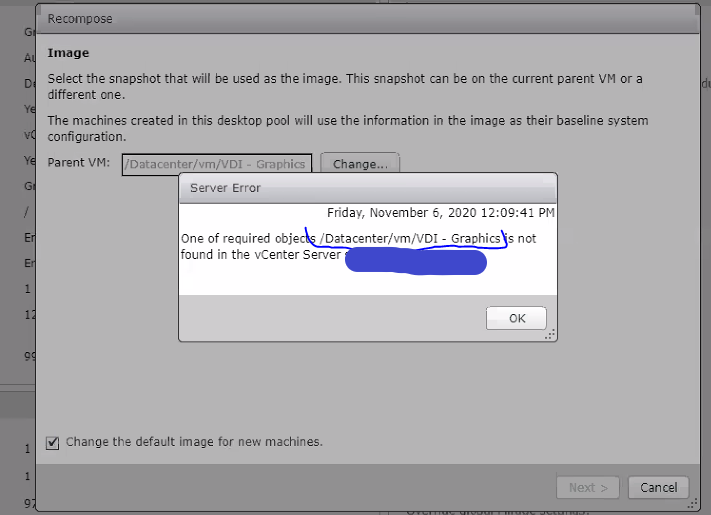
So, bringing up the FLEX console and walking through a Recompose function got us some additional information! Take a look:

That file reference is clue #2 of the puzzle – we now know what file the Recompose is looking for. We drilled in to vCenter (blacked out) to verify that the VM is there, and sure enough, under “VMs & Templates” it was located at \DataCenter\vSAN\VDI-Graphics. But that still didn’t look right…
On a hunch, I asked the customer to clear the error and let’s use the “Change/Browse” button on the “Parent VM” field (in the background). Once we did that, we found the problem. In the pop-up for locating the Parent VM, we were presented with “/Datacenter/vm/Parent/…” folder structure, where all the Parent VM’s were located – not “/Datacenter/vm/…”
Apparently, some process or some one, had moved the Parent VM’s down one level, consequently breaking all Pool Recompose operations unless the Parent VM field was repointed to the new location.

Once we re-pointed to the new location of the Parent VM, the Recompose process went off without a hitch!! The customer went back and checked the config of other pools and found they were affected with this issue as well. Fortunately, you can re-point in either the HTML5 or FLEX interfaces, but this error wasn’t handled well in the HTML5 console. Apparently, the HTMT5 console is still a work in progress, so when you run into Error conditions that aren’t explained well – give the FLEX console a shot!

Hope this helps.